

When I purchased my iMac Pro last year, I decided to invest in the matching space grey magic keyboard and trackpad. Not being a big fan of the magic mouse, I have started to become used to completing everyday tasks on the trackpad, which I love. There are occasions though when I need to the precision of a mouse. Until now, there haven’t been any decent options. Although the magic keyboard is functional and looks the part, as a touch-typist, I find the key travel a little too short. It also lacks a backlight, which is very irritating. I have a mechanical keyboard, but it ruins the aesthetic of my setup, being the wrong colour and style.
Logitech recently announced a new space grey keyboard and mouse, designed specifically for Mac. I have owned a few Logitech keyboards and mice in the past and have always found them to be of exceptionally high quality, so I went ahead and ordered them.
MX Keys
The MX Keys is a very robust and attractive keyboard, costing £99.99 in the UK. It is surprisingly heavy and, although the buttons are square, they each have a circular interior. There is a good amount of travel in the keys, which makes type a very pleasant experience.

The keyboard has a backlight which is bright and only comes on in low light. To save battery, the keyboard also detects when you are about to use it. Very clever.

Another thoughtful feature is that the keyboard can connect to up to three devices (one at a time of course). The device selectors are found on F13-15 keys. Connecting the device is very simple. On the Mac, connect using the Logitech Unifying software and dongle, as it unlocks extra capabilities. Once paired, Logi Options allows you to customise the keyboard’s behaviour. More on that later.
Both devices are charged via USB-C connectors, which was nice to see. The box contained a USB-A to USB-C cable for each.
MX Master 3
The mouse has a shape that is comfortable in the hand and also costs £99.99 in the UK. I don’t know if there is a left-handed version, but mine is most definitely for a right-handed individual.
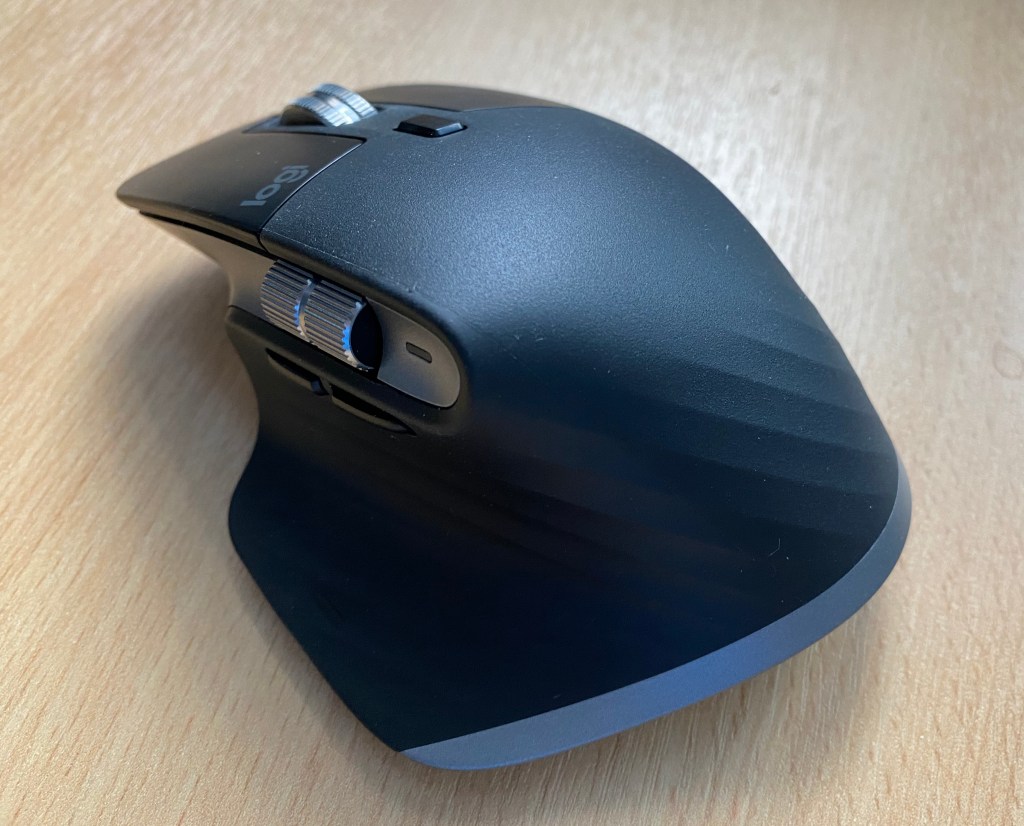
It has a plethora of buttons on it – all of which are programmable by application. The wheel on the top has two modes, controlled by the button behind it. It has a regular scroll and a momentum-based fast scroll, which is very nice. There is a wheel on the side as well as well as two buttons. Right at the bottom on left is a gesture button. With this pressed, it is possible to move the mouse to generate different gestures.
As with the keyboard, the mouse can control up to three different devices. This includes the iPad, which now has a cursor which can be controlled.
Logi Options
The Logi Options software allows both the keyboard and mouse to be customised.

The keyboard has the started macOS controls and also has some extra ones above the number keypad. I reprogrammed the calculator button to start PCalc rather than the default macOS calculator. You can customise the keyboard for specific applications, but that is off by default.

The mouse buttons and wheels can be customised for all applications as well as for specific applications. It comes pre-configured for some popular applications like Safari, Final Cut, Microsoft Office and some Adobe Creative tools.
Conclusion
So far I have found the keyboard and mouse combo to be excellent. I have moved my trackpad to my left hand. I’ll see how that works out. I’ve heard some tech podcasters have found that quite a productive arrangement.
 Technology, Programming & Flight Sim